How to make a cartoon
with Nova Animate
Everything you need, step by step: drawing, characters, backgrounds, one-tap moves, tracing, sound and export. Made for phones, works on any screen.
On this page
Quick start: your first cartoon in 8 steps
- Pick a canvas. Open Nova Animate and choose a shape.
- Add a background. Menu, then Backgrounds & pictures.
- Add a character. Stickers, then Pets, Wild, Kids or Monsters.
- Add text. Tap Text and type a message.
- Make it move. Tap Move, then Bounce, Walk or Spin.
- Press Play. Use the timeline to fine-tune.
- Add sound. Menu, then Sound & music.
- Export. Tap Export, then Make video.
Open Nova Animate in another tab and follow along. Every part is explained below with real screenshots.
Before you start
Nova Animate runs in your web browser, so there is nothing to install and nothing to sign up for. It is built for phones first and works the same on tablets and computers.
Start a new animation
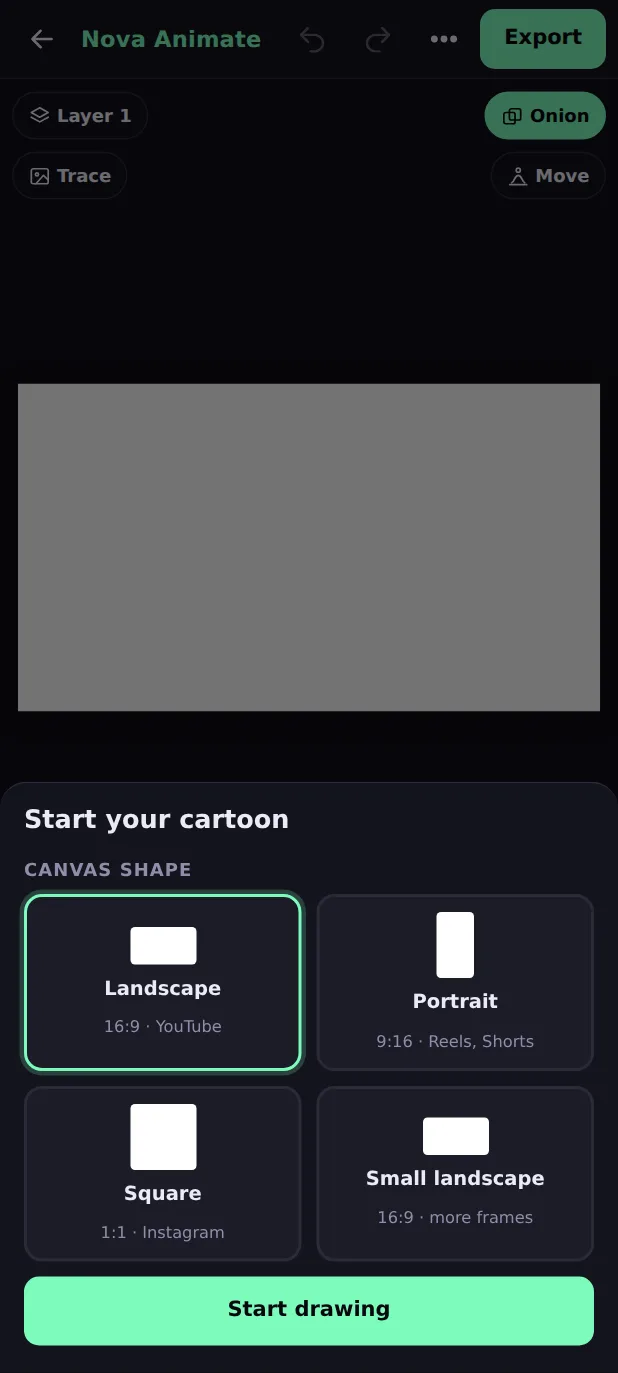
The first time you open Nova Animate, it asks you to choose the shape of your canvas. You can change the shape later by starting a new animation from the menu.
- Landscape (16:9, 960×540): for YouTube and TV.
- Portrait (9:16, 540×960): for Reels, Shorts and WhatsApp Status.
- Square (1:1, 720×720): for Instagram posts.
- Small landscape (16:9, 640×360): the same shape with less detail, so your device can hold more frames.
Tap Start drawing. Your first blank frame opens.
My animations: keep more than one
Open the menu and tap My animations. Every animation you draw on is kept on your device with a small picture, its length and the time you last worked on it. Starting a new animation no longer replaces the old one.
- Tap an animation to open it. The one you are in saves by itself.
- Rename it, make a Copy to try a different idea, or Delete it (Nova Animate asks first).
- Tap New animation to choose a canvas and start fresh. You can keep up to 30.
The screen at a glance
Hold your phone upright. The canvas is in the middle, the tools are under it, and the frames are at the bottom.
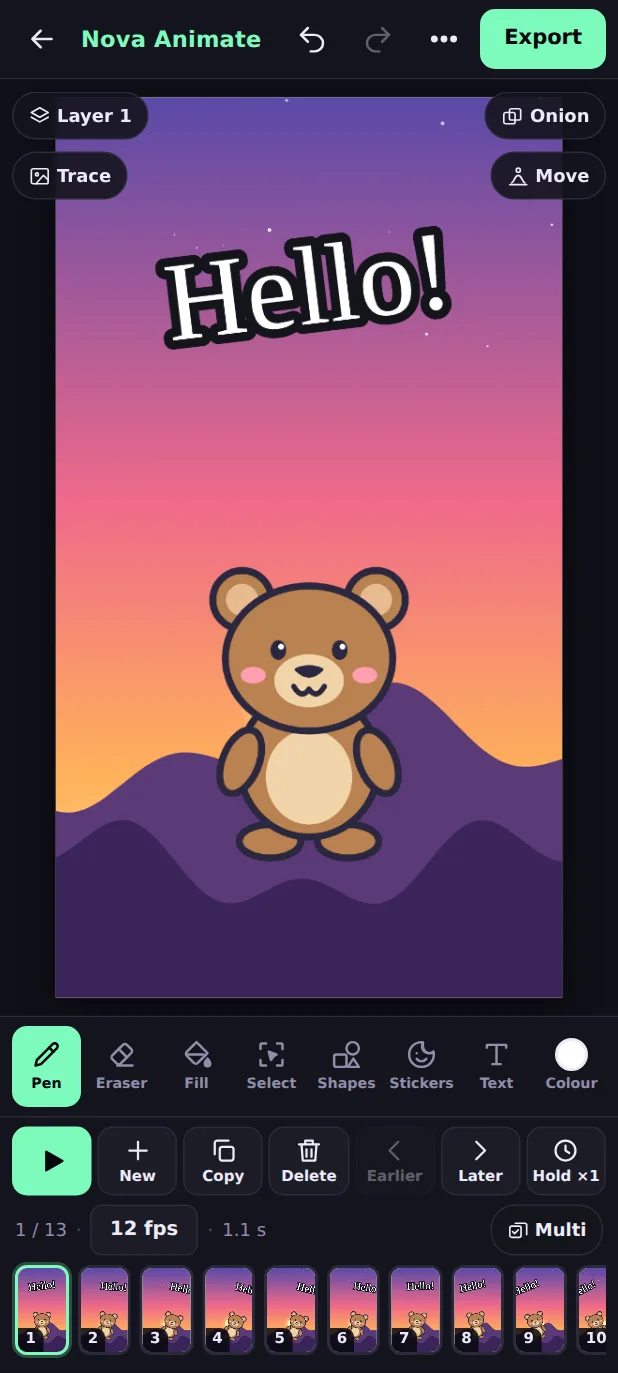
- 1Undo and Redo. Go back or forward, up to 60 steps.
- 2Menu (⋯). Background colour, Backgrounds & pictures, Make it move, Trace, Sound & music, save a frame as a picture, clear a layer, new animation.
- 3Export. Makes your video.
- 4Layers. Shows the layer you draw on. Tap it to see all layers.
- 5Trace. Shows a photo or video faintly under your drawing.
- 6Onion. Shows ghosts of the frames before and after.
- 7Move. Makes the frames for a motion in one tap.
- 8The canvas. Draw here. Pinch with two fingers to zoom and move it.
- 9Tools. Pen, Eraser, Fill, Select, Shapes, Stickers, Text and Colour.
- 10Frame buttons. Play, New, Copy, Delete, Earlier, Later and Hold.
- 11Speed, length and Multi. Frames per second, total time, and choosing several frames.
- 12The frame strip. Tap a frame to open it. Swipe to scroll.
Draw: pen, eraser, fill and colour
Pen and eraser
Pick Pen and draw with your finger or a stylus. Pick Eraser to rub parts out. The pen and the eraser each remember their own size.
Colour and size
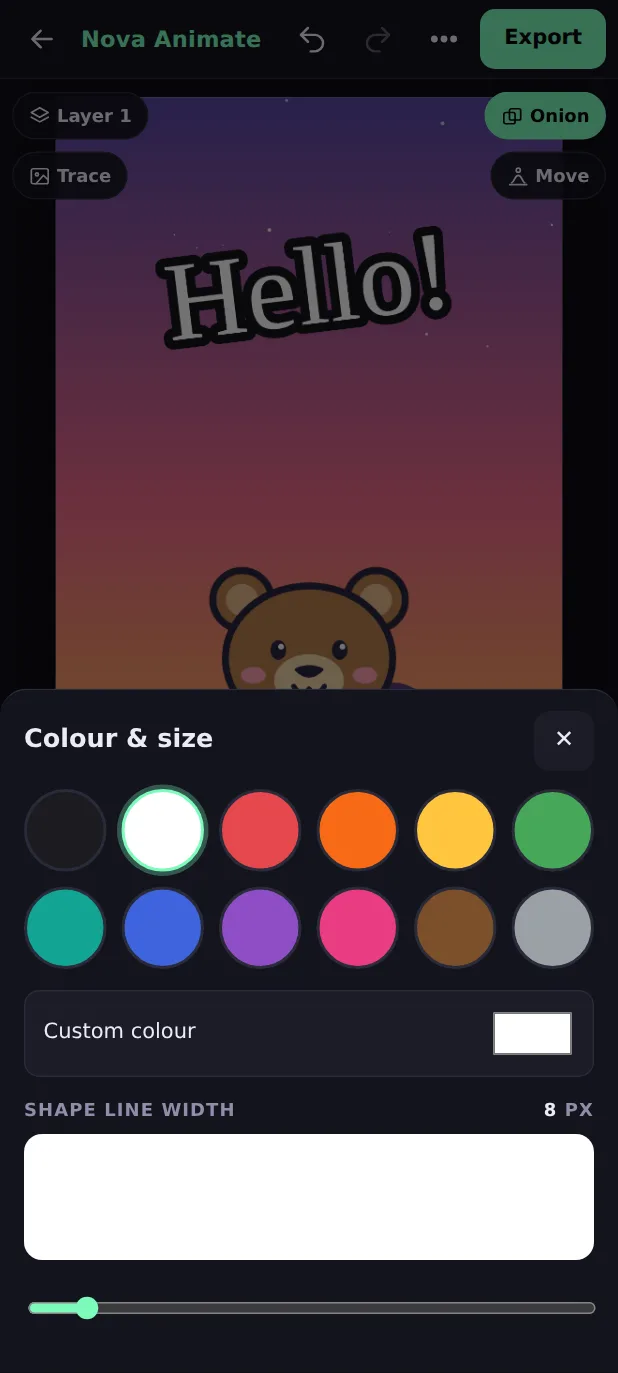
Tap Colour to open the Colour & size sheet. Choose one of 12 colours, or a custom colour, and move the slider to change the brush size. Text uses the same colour.
Fill
Pick Fill and tap inside a closed shape to colour it. Fill looks at everything you can see, across all visible layers, and paints on the layer you are on. Draw your outlines on a layer in front and colour on a layer behind, and Fill stays tidy.
Zoom and move the canvas
Pinch with two fingers to zoom in for details. Drag with two fingers to move around. Tap the Fit chip (it shows the zoom) to see the whole canvas again. On a computer, scroll to move, and hold Ctrl or Cmd while scrolling to zoom.
Shapes
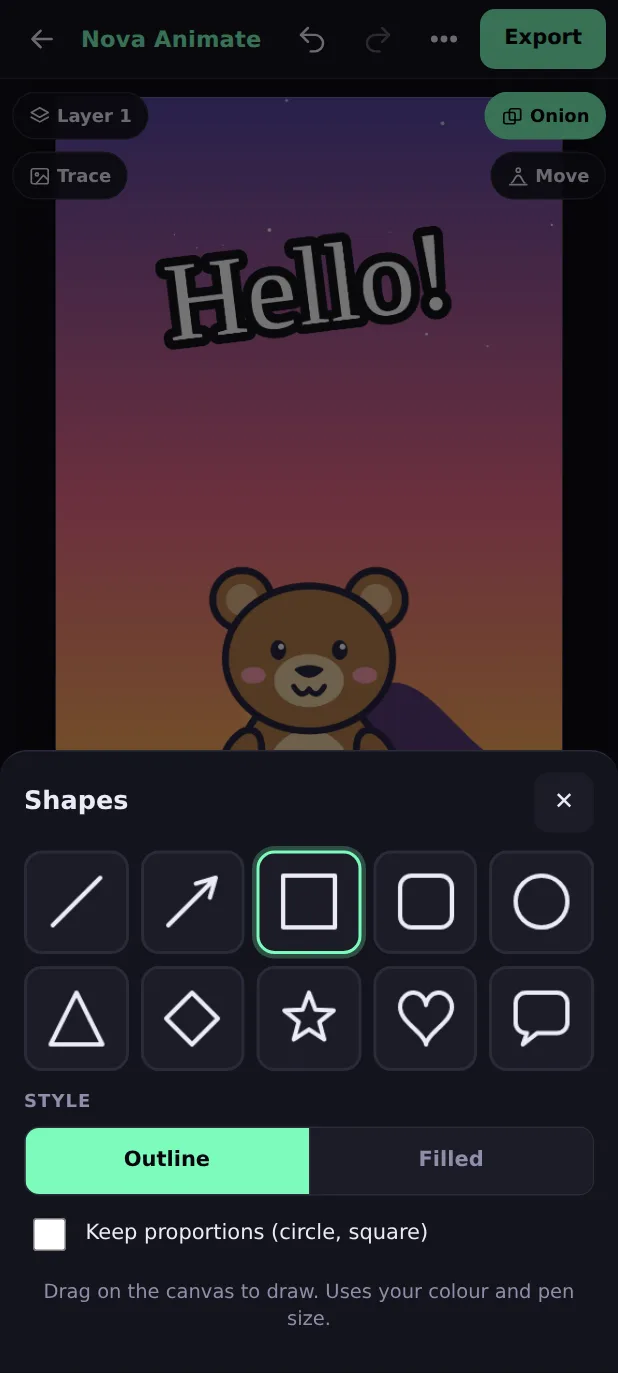
Tap Shapes and choose one of 10 shapes: rectangle, rounded box, circle, triangle, star, heart, arrow, line, diamond or speech bubble. Choose Outline or Filled, then drag on the canvas to draw it.
- Shapes use your colour, and the pen size sets the line width.
- Turn on Keep proportions to get perfect circles and squares.
- While you drag, you see the shape. Let go to place it. Undo removes it.
Select and move
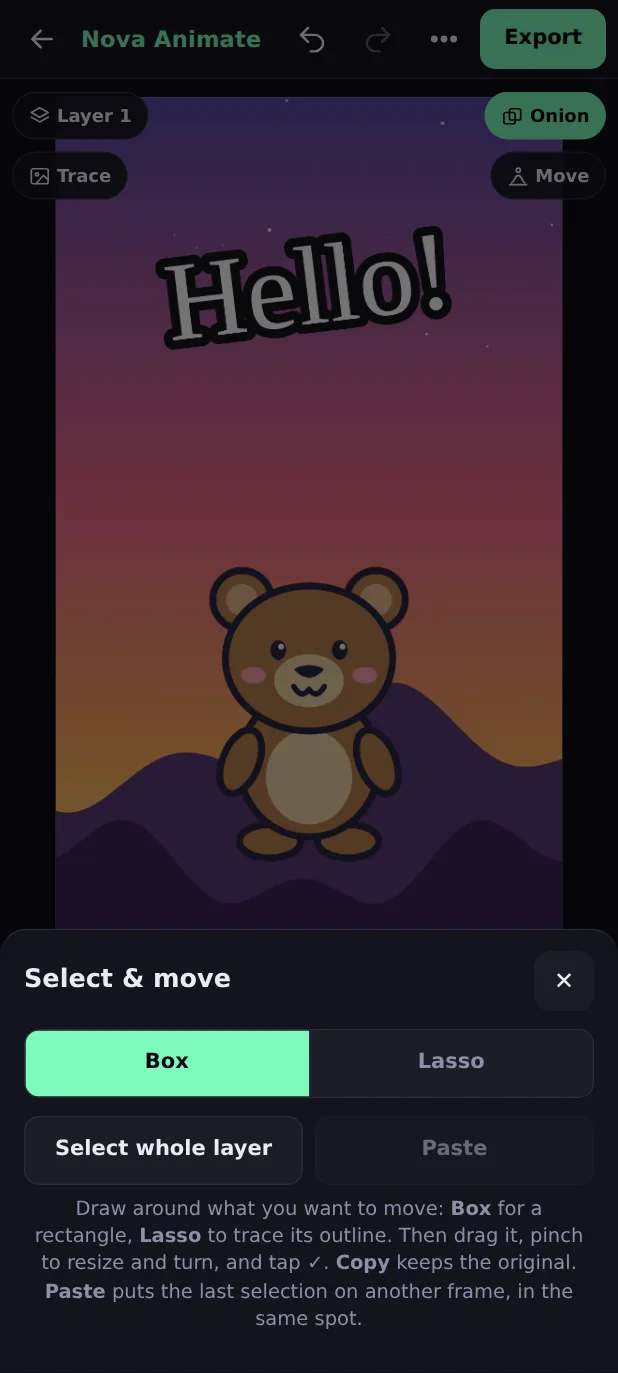
Tap Select to move, resize, turn or copy part of your drawing.
- Choose Box (a rectangle) or Lasso (draw around the part).
- Draw around what you want. It lifts off the layer and floats.
- Drag it to move it. Pinch with two fingers to resize and turn it. Or use the buttons: turn left, turn right, smaller, bigger, flip.
- Turn on Copy to keep the original too. Tap the tick to put it down, or the ✕ to put it back.
Select whole layer lifts everything on the layer you are on. Paste puts the last selection onto another frame in the same spot, ready to nudge: a quick way to animate a moving part.
Add text
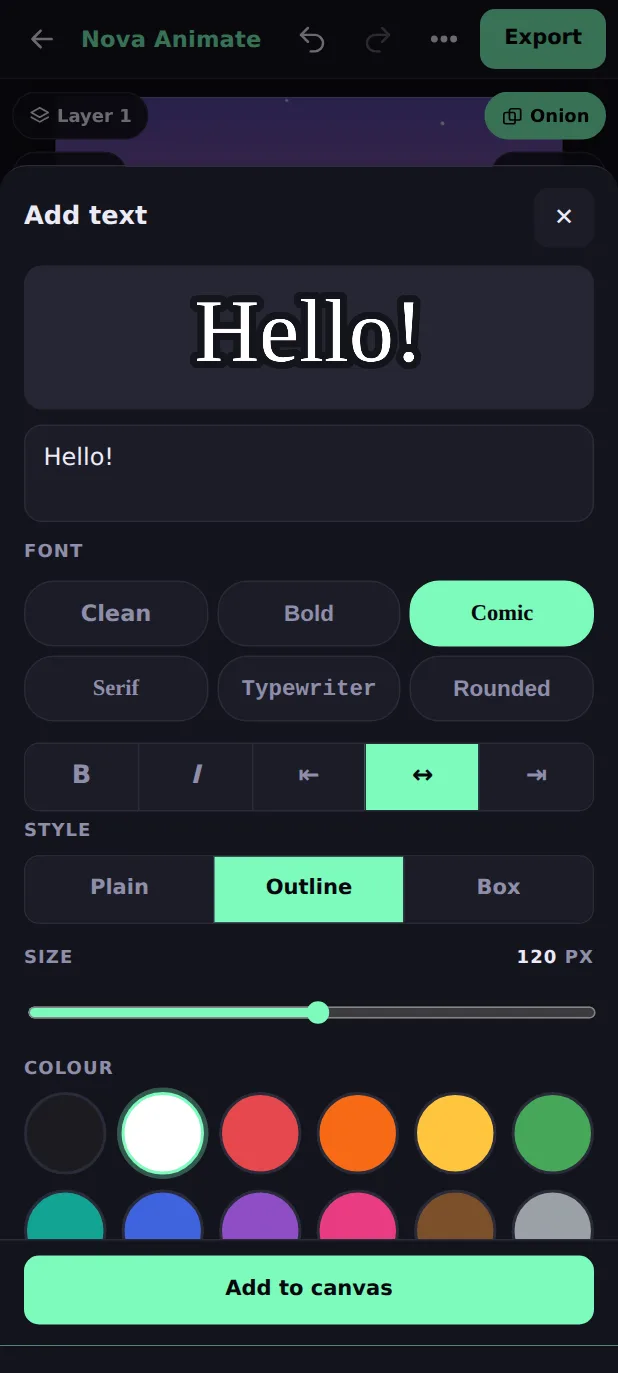
Use text for titles, speech and signs.
- Tap Text and type your words. The preview shows exactly how they will look.
- Choose a font: Clean, Bold, Comic, Serif, Typewriter or Rounded. Turn on B (bold) or I (italic) and choose left, centre or right alignment.
- Choose a style: Plain, Outline (a contrasting edge so it reads on any background) or Box (words on a coloured plate).
- Set the size and colour, then tap Add to canvas.
- Drag the text where you want it, pinch to resize and turn it, and tap the tick.
Characters, stickers and your own pictures
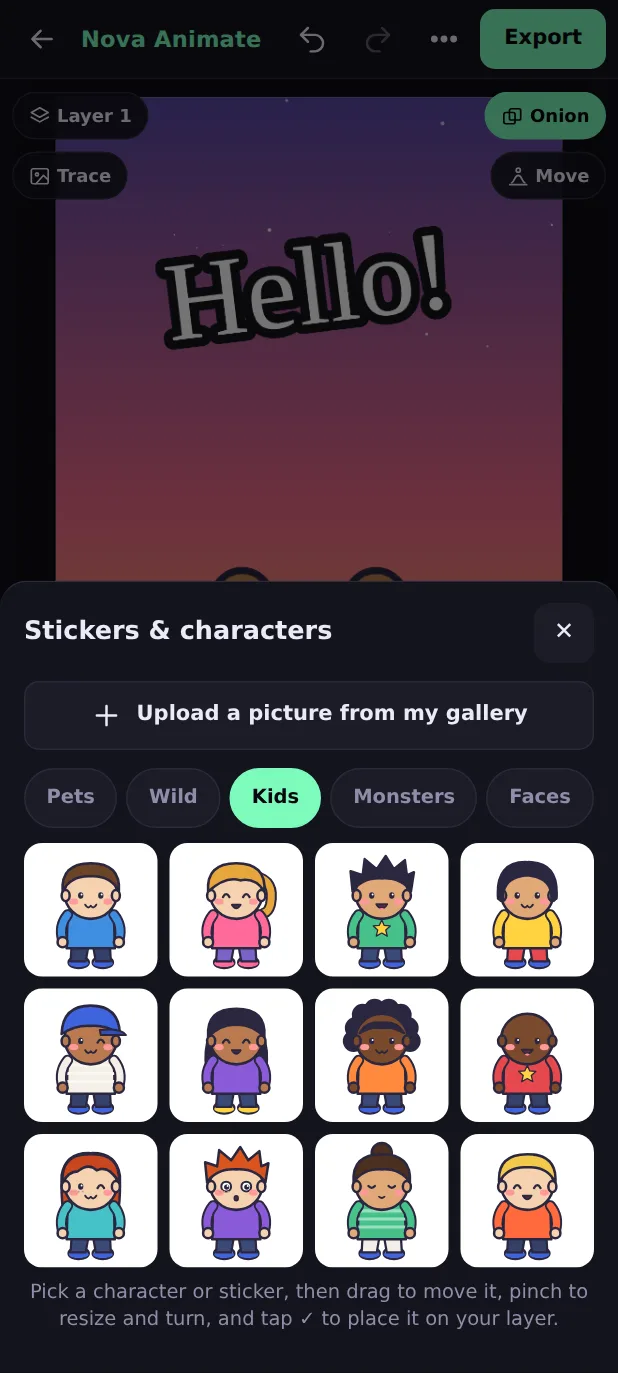
Tap Stickers. The first four tabs hold 93 ready-made cartoon characters, all drawn in the same friendly style:
- Pets (24): cats, dogs, bunnies, pigs, mice, chicks, ducks and cows.
- Wild (36): bears, pandas, foxes, frogs, lions, monkeys, elephants, owls, penguins, koalas, unicorns and tigers.
- Kids (12): boys and girls with different hair, skin and clothes.
- Monsters (21): monsters, robots, aliens, ghosts, a snowman, a pumpkin and dragons.
The tabs after that hold emoji stickers: Faces, Animals, Nature, Food, Things and Signs.
- Tap a character. It appears in the middle of the canvas at about half its height.
- Drag it into place. Pinch to make it bigger or smaller, or turn it. The buttons below the canvas do the same.
- Tap the tick to place it on the layer you are on. One Undo takes it off.
450+ illustrations
At the top of the Stickers sheet (or in the menu), tap Illustrations. It holds more than 450 flat, colourful pictures in 22 categories: fruits, vegetables, Indian and world food, drinks, sea life, birds and bugs, vehicles, buildings and monuments, nature, weather, space, school and science, sports, music, tech, tools, clothes, festivals (Diwali, Holi, Eid, Christmas), home, symbols, fantasy and people at work.
- Type in the search box to find a picture, for example cake, rocket, diwali or ghar. Several words narrow it down.
- Tap a category chip to see just that group. Swipe the chips sideways for more.
- Tap a picture to place it exactly like a character: drag, pinch, then tap the tick. One Undo takes it off.
The pictures are drawn by code, so they stay sharp at any size, and they load only when you open Illustrations.
Use your own pictures
At the top of the Stickers sheet, tap Upload a picture from my gallery. Pick a photo or a drawing and it floats just like a character.
Backgrounds
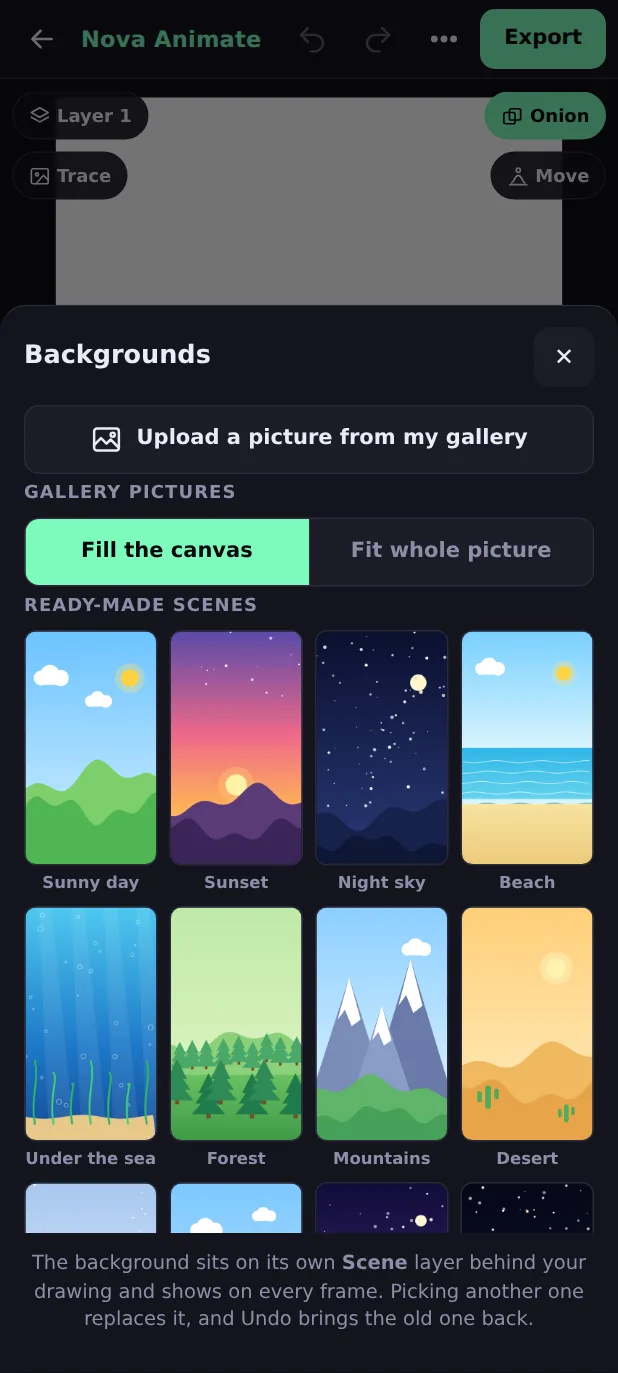
Open the menu (⋯) and tap Backgrounds & pictures.
- 28 ready-made scenes: sunny day, sunset, night sky, beach, under the sea, forest, mountains, desert, snowy day, city, city at night, outer space, farm, classroom, living room, road, rainbow, candy land, jungle, castle, stage, graph paper, notebook, and soft colours. They fit wide, tall and square canvases.
- Your own picture: tap Upload a picture from my gallery. Choose Fill the canvas to cover everything, or Fit whole picture to see all of it.
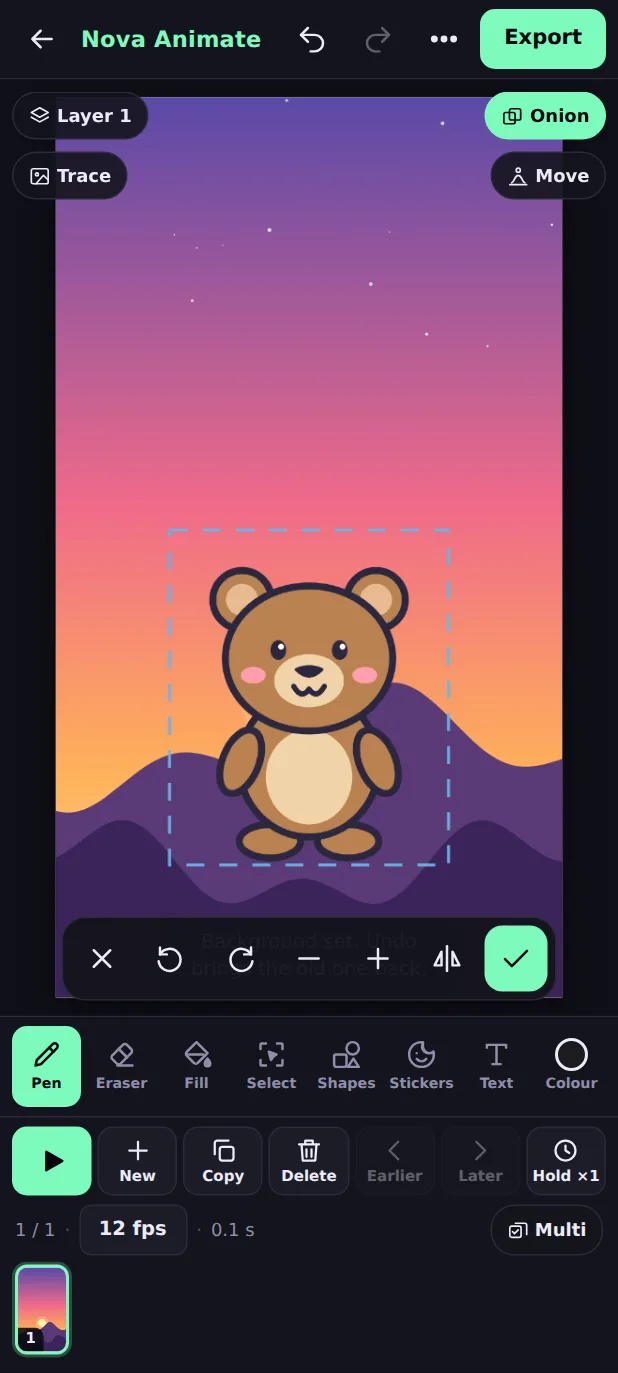
The background goes on its own Scene layer at the very bottom and shows on every frame. Choose another one and it replaces the first. Undo brings the old one back, and Remove the background picture deletes it.
Layers
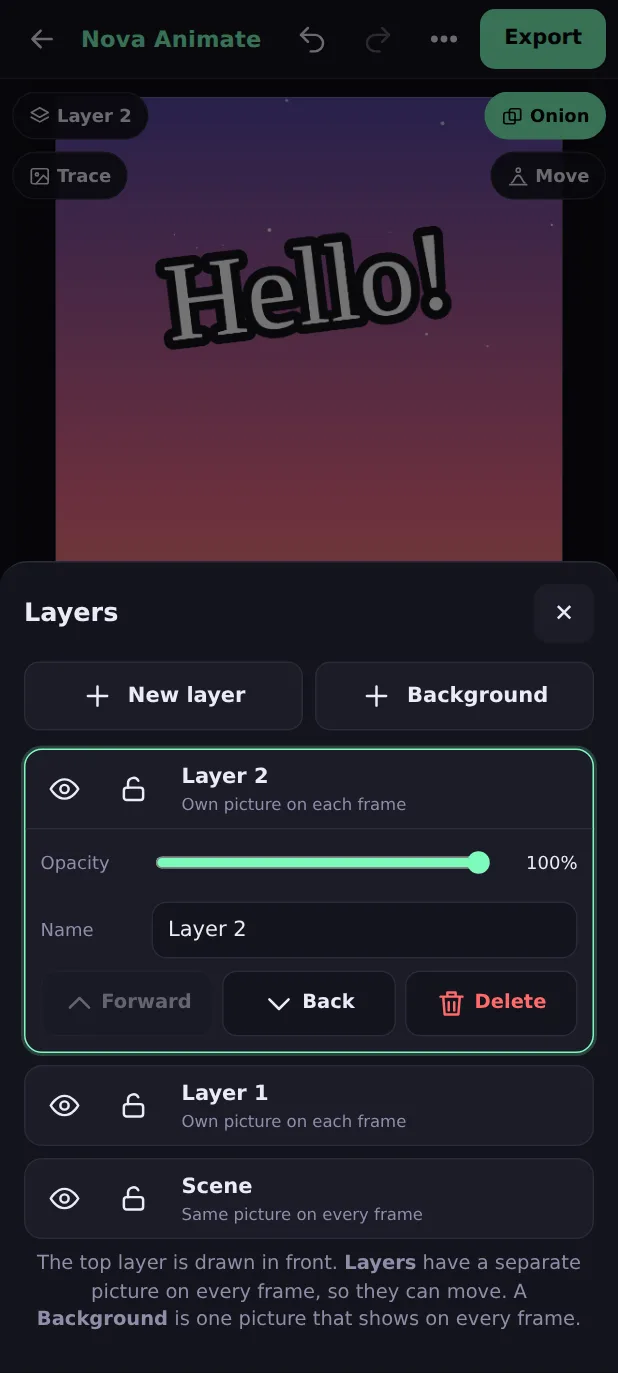
Layers are like clear sheets stacked on top of each other. Put the scenery on one and your character on another, so the scenery stays put while the character moves.
Tap the layer name at the top left (or open Layers in the menu). You can have up to 8 layers.
- New layer has its own picture on every frame, so it can move.
- Background is one picture shared by every frame. It never moves.
- Tap a layer's name to draw on it. Tap the eye to hide it and the lock to protect it.
- For the layer you are on, set its Opacity, rename it, or move it Forward, Back or Delete it.
Frames, play and speed
An animation is a list of pictures shown quickly one after another. Each picture is a frame. The row of buttons under the tools works on frames:
| Button | What it does |
|---|---|
| ▶ Play | Plays your animation from the frame you are on. Tap again to stop. |
| New | Adds a blank frame after this one. |
| Copy | Duplicates this frame, so you can change it a little for the next movement. |
| Delete | Removes this frame. Undo brings it back. |
| Earlier / Later | Moves this frame one place earlier or later. |
| Hold ×1 | Keeps this frame on screen for 2, 3 or 4 beats. Animators call this "shooting on twos". |
Speed
Under the frame buttons you see 1 / 8 · 12 fps · 0.7 s: the frame you are on, the speed and the total length. Tap the speed to change it. fps means frames per second. Choose from 1, 2, 3, 4, 6, 8, 10, 12, 15 or 24.
- 12 fps is the classic cartoon speed.
- 1 to 4 fps is slow, good for checking each frame or for a stop-motion look.
- 24 fps is smooth, but needs twice as many frames for the same length.
The timeline: Multi, range loop and drag to reorder
Multi: work on many frames at once
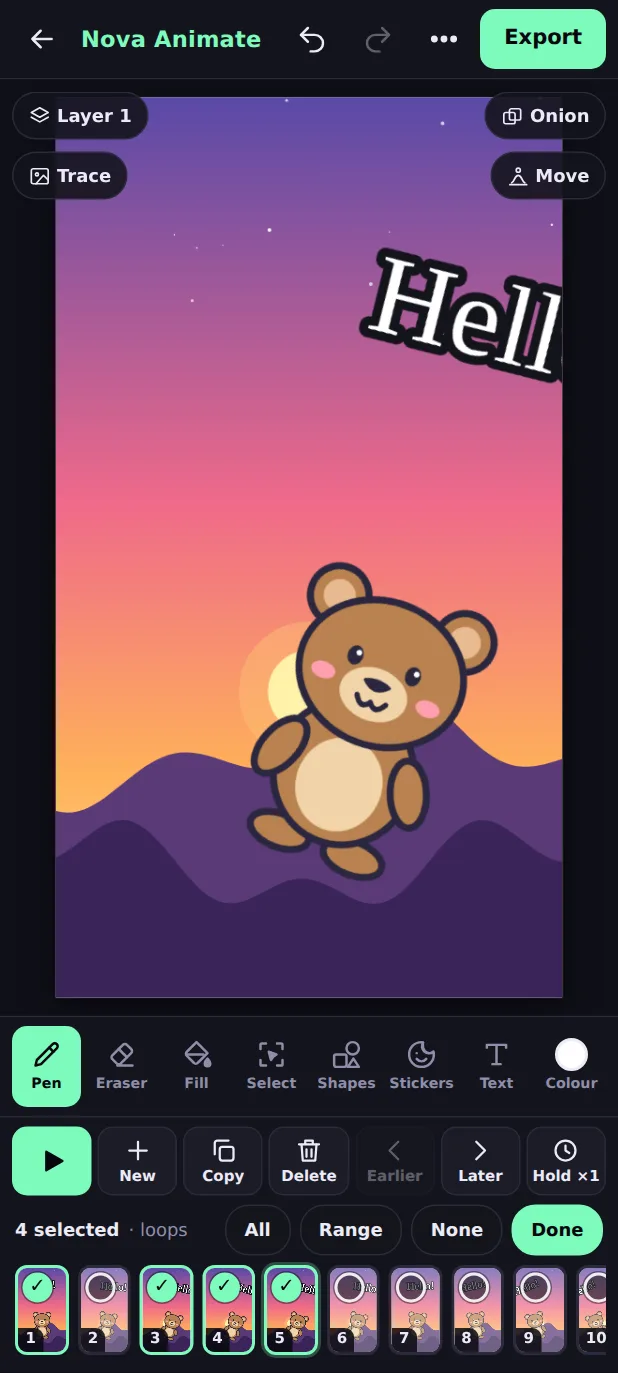
- Tap Multi (right side of the speed row). Each frame gets a tick circle, and the frame you were on is chosen.
- Tap frames to choose or unchoose them. All chooses every frame, None clears the choice, and Range chooses everything between your first and last choice.
- Copy, Delete, Earlier, Later and Hold now act on all chosen frames together, and each is one Undo step.
- Tap Done to go back.
Loop a range
Choose two or more frames in Multi mode and press Play. Only those frames repeat, which is perfect for checking one movement over and over. (Range loops play without sound.)
Drag a frame to a new place
Press and hold a frame for about half a second until it lifts, then drag it left or right. A line shows where it will land. Hold at the edge to scroll. Let go to drop it. A quick swipe just scrolls the strip, so you never move a frame by accident.
Onion skin
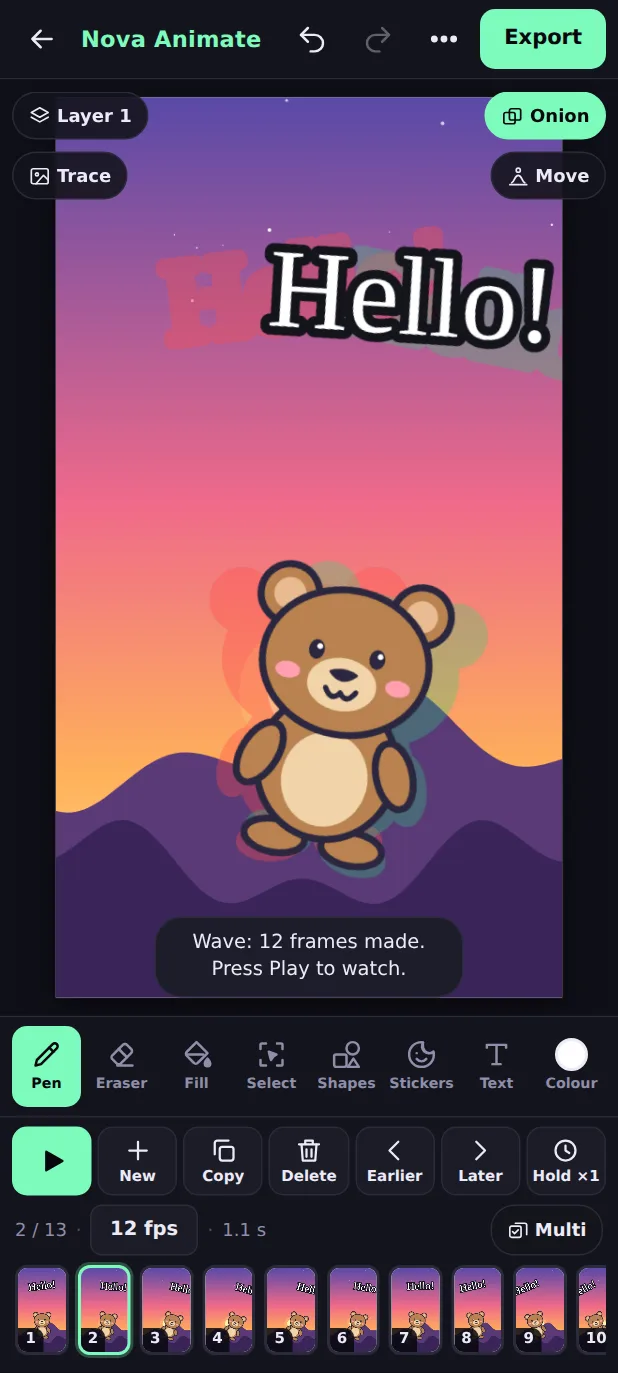
Onion skin shows faint ghosts of the frames around the one you are drawing: the frame before in red and the frame after in green. It is how animators keep movements smooth, because you can see where the drawing was and where it is going.
- Tap Onion on the canvas to switch it on or off. It is on when it is green.
- Onion skin only shows on frames that have their own picture, so a Background layer never hides it.
- The ghosts are not part of your video.
Make it move
This is the fastest way to animate. Nova Animate makes the frames for a motion from the picture on your layer, so you do not have to draw each one.
- Put your drawing or character on its own layer, on the frame where it should start. (A character you place with Stickers is already on the layer you were on.)
- Tap Move on the canvas, or open it from the menu.
- Choose How long: Short (½ second), Medium (1 second) or Long (2 seconds). The sheet shows how many frames that makes at your speed.
- Choose How strong: Small, Medium or Big.
- Tap a motion. The new frames appear right after the current one, and you land on the first of them. Press Play to watch.
Every new frame is made from your original picture, so it stays sharp. Your other layers are copied unchanged, so scenery stays still. Turn off Keep my other layers still if you want only the moving layer. One Undo removes all the new frames.
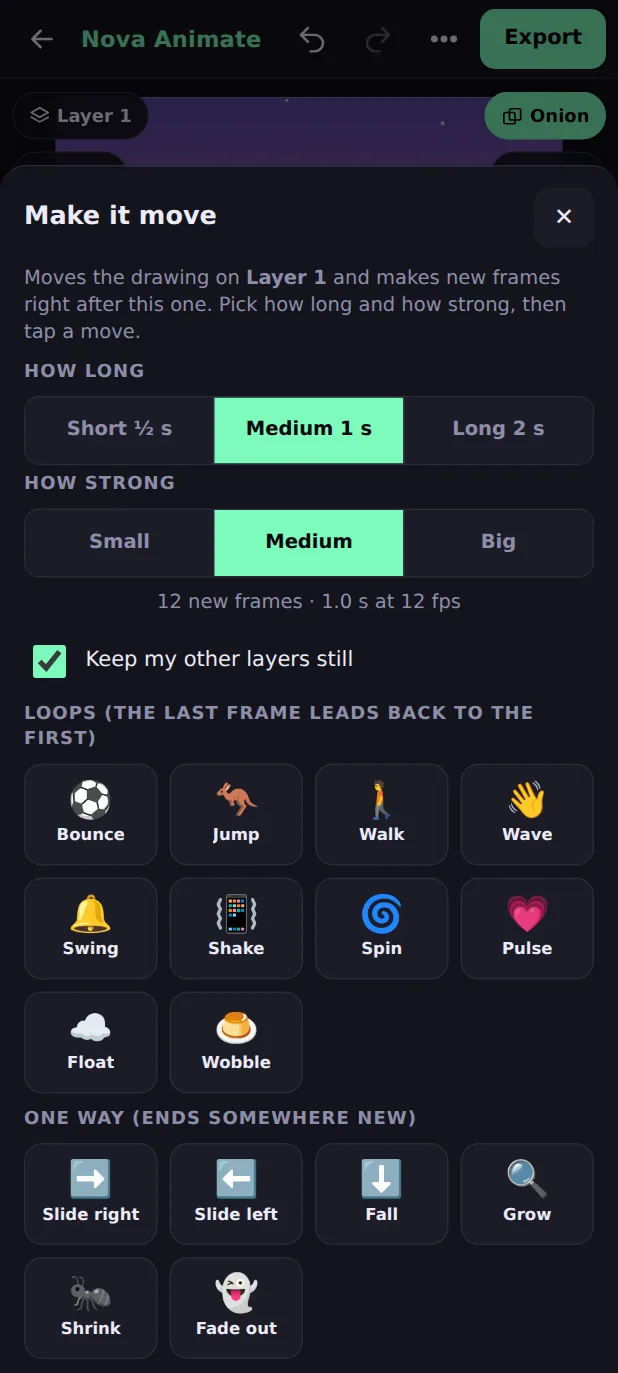
The 16 motions
Loop motions end where they started, so the new frames plus the one you were on repeat smoothly. One way motions end somewhere new.
| Motion | Type | What it looks like |
|---|---|---|
| Bounce | Loop | Hops up and down and squashes a little when it lands. Great for balls and happy characters. |
| Jump | Loop | One big jump, then back where it started. |
| Walk | Loop | Walks on the spot: a small bob and sway, with two steps in every loop. |
| Wave | Loop | Tilts left and right from the bottom, like a wave or a happy wiggle. |
| Swing | Loop | Swings like a pendulum, hanging from the top. |
| Shake | Loop | Shakes quickly from side to side. Good for cold, scared or angry. |
| Spin | Loop | Turns a full circle around its middle. |
| Pulse | Loop | Grows and shrinks like a heartbeat. |
| Float | Loop | Drifts up and down slowly, like a cloud or a balloon. |
| Wobble | Loop | Squashes and stretches like jelly. |
| Slide right | One way | Moves steadily to the right and ends there. |
| Slide left | One way | Moves steadily to the left and ends there. |
| Fall | One way | Drops faster and faster to the bottom of the picture. |
| Grow | One way | Gets bigger, up to one and a half times. |
| Shrink | One way | Gets smaller and smaller. |
| Fade out | One way | Fades away until it disappears. |
Trace a photo or a video
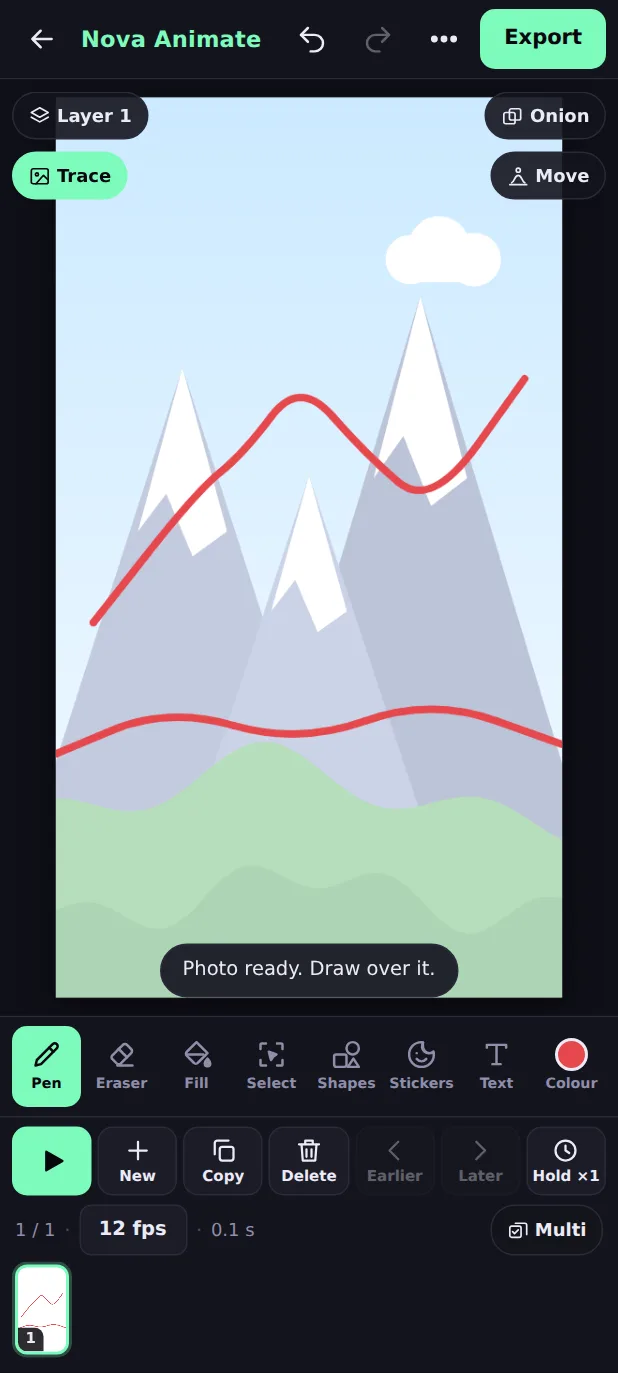
Tracing means drawing over something real. It is a quick way to get realistic shapes and motion.
- Tap Trace on the canvas (or open it from the menu).
- Choose Use a photo or Use a video from your gallery.
- The picture shows faintly under your drawing. Draw over it with the pen.
- Use How faint to make it lighter or stronger, Fit whole picture or Fill canvas for its size, and Behind my drawing or In front for its position.
Tracing a video
With a video, each frame shows the next moment of the clip, so you can copy real movement. Set Start at to choose where in the video you begin, and Clip speed (½×, 1× or 2×) to move through it slower or faster. Tap Add frames to fit the clip and Nova Animate adds exactly as many frames as the clip needs. Draw each frame over what you see.
The guide is only a guide: it is never part of your exported video, never in the small pictures, and Fill ignores it. It hides while you play. Hide guide and Remove are at the bottom of the sheet. Your guide is remembered on this device.
Sound, music and your voice
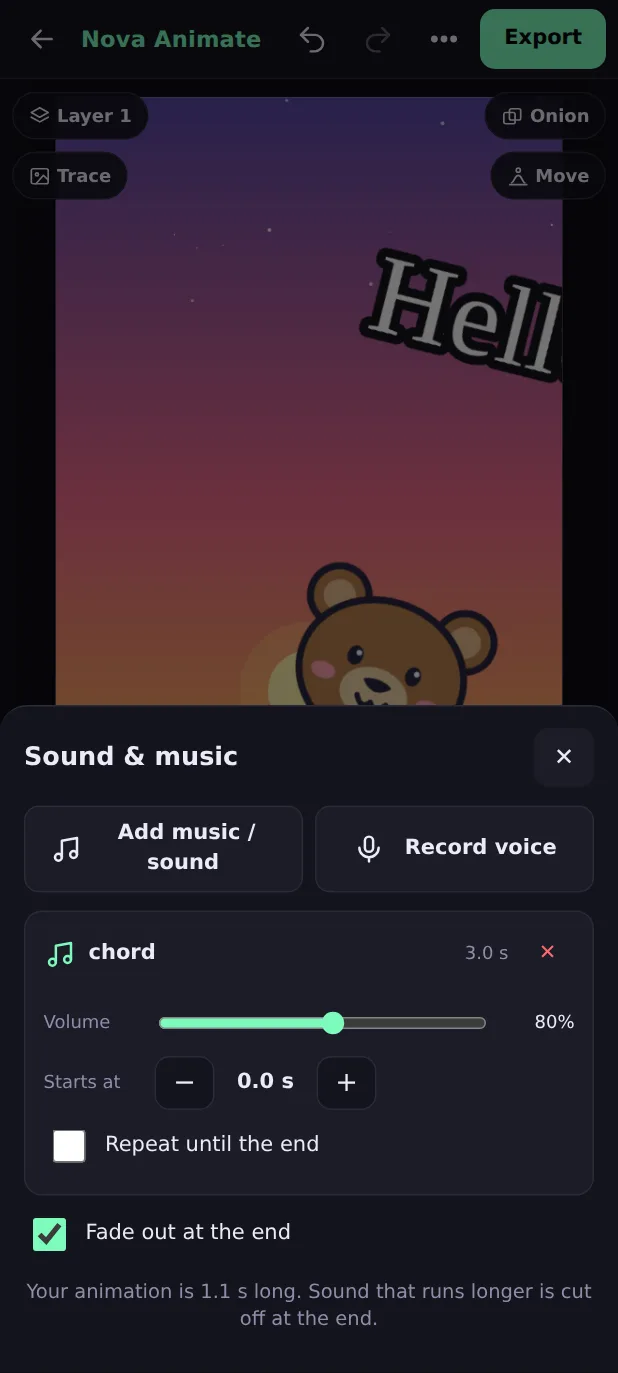
Open the menu (⋯) and tap Sound & music.
- Add music / sound: pick a song or sound effect from your phone (up to 60 MB each).
- Record voice: tap, allow the microphone, speak, and tap again to stop. Your recording is added as a sound.
You can add up to 6 sounds. For each one, set the Volume (0 to 150%), when it Starts at (in seconds, with − and +), and whether it should Repeat until the end. Remove one with the ✕. Turn on Fade out at the end for a smooth finish.
When you press Play, the sounds play along with the animation. When you export, they are mixed into the video.
Export your video
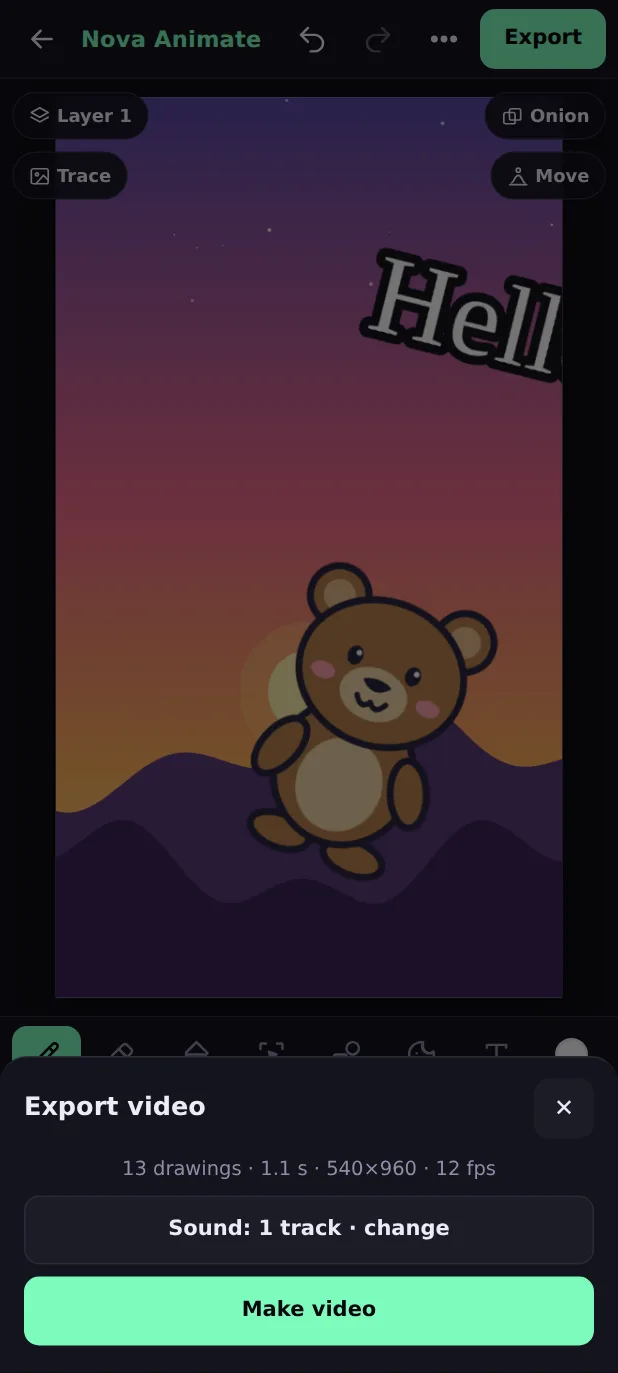
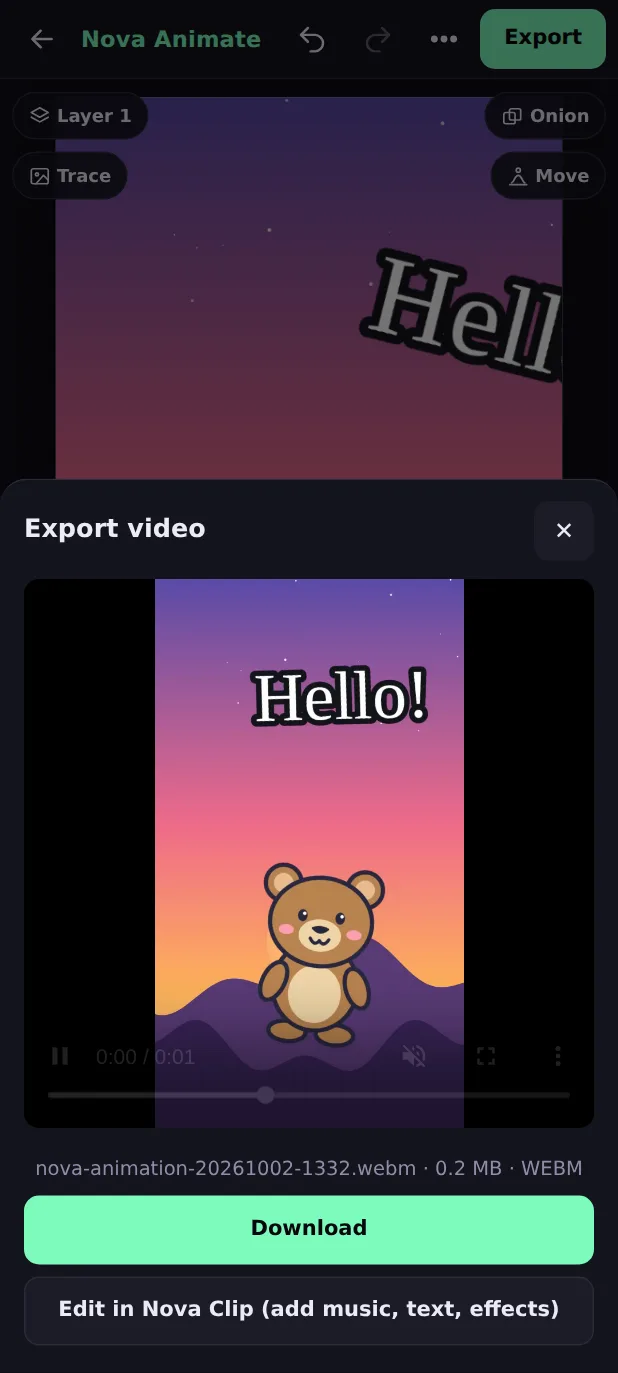
- Tap Export (top right). The sheet shows how many drawings, how long, the size and the speed.
- If you want sound, tap the sound button to add or change it.
- Tap Make video and wait for the bar to finish. Keep the screen on and stay on the page while it works.
- Watch the preview, then tap Download, or Share if your device offers it.
The video is an MP4 (H.264) where your browser supports it, and a WebM otherwise. Both play on phones, and you can post them to WhatsApp, Instagram and YouTube. Everything is made on your device and is never uploaded.
To keep a single picture, open the menu and tap Save this frame as picture (PNG).
Finish in the Nova Clip editor
When your animation is exported, tap Edit in Nova Clip (add music, text, effects). The video opens in the Nova Clip editor, where you can cut it together with other clips, add titles, transitions and a soundtrack, and export a longer film. It is the same site, so nothing is uploaded. Learn the editor in the Android manual or the desktop manual.
Saving, offline and privacy
- Auto-save. Nova Animate saves your frames, layers, sounds and settings on your device as you work, so your last animation is waiting when you come back. Nothing needs pressing.
- Many animations. Starting a new animation (menu → New animation…) keeps the one on screen. Find all of them under menu → My animations.
- Offline. After the first visit, Nova Animate opens and exports without internet.
- Private. Your drawings, photos, sounds and videos stay on your device. They are never uploaded.
- Clearing browser data also clears your saved animations. Export first if you are not sure.
Ideas to try first
🎂 A birthday greeting
Pick the Candy land background, place a Kid character, add Happy Birthday! in Comic with an Outline, make the character Bounce, and add a song.
🎬 A Reels intro
Choose Portrait, add a Monster, type your channel name in Bold, make the name Pulse and export. Add it to the start of your videos in Nova Clip.
🚶 A walking friend
Place a character, tap Move, choose Walk (Long), then add Slide right on the last frame so it walks across.
🏀 A bouncing ball
Draw a circle with Shapes, tap Move, choose Bounce with Big strength. Add a shadow on another layer.
✏️ Hand-drawn walk
Trace a short video of someone walking. Add frames to fit the clip and draw over each one.
🎓 A science explainer
Use the Classroom background, add Text for each step, and record your voice as you explain.
Keyboard shortcuts (computer)
On a computer, these keys work when no sheet is open.
| Key | What it does |
|---|---|
| B | Pen |
| E | Eraser |
| G | Fill |
| U | Shapes |
| V | Select |
| O | Onion skin on or off |
| N | New frame |
| Space | Play or stop |
| ← → | Previous or next frame |
| [ ] | Smaller or bigger brush |
| Ctrl + Z (Cmd + Z) | Undo |
| Ctrl + Y or Ctrl + Shift + Z | Redo |
| Enter / Esc | While placing a sticker, text or selection: place it / cancel |
| Arrow keys (Shift for bigger steps) | While placing: nudge it. + and - resize it |
Common problems
My drawing disappeared
Fill colours the whole screen or leaks
Make it move says it cannot move my layer
"This device can hold N frames at this size"
Export is slow or stops
There is no sound in my video
A video will not open in Trace
The microphone does not record
The bottom of the screen is hidden behind the phone's buttons
Still stuck? Visit the Help Center, or write to team@novaclip.tech with your phone model and browser.
Ready to animate?
Open Nova Animate and make your first cartoon. It is free and takes a minute to start.